
Complete Guide – How To Setup A HDMI Capture Card With Your Camera
This complete guide has been put through its paces by thousands of viewers on my YouTube channel. A lot of those viewers asked some great questions which I have built directly into this guide. I bring you this Complete Guide on How To Setup An HDMI Capture Card With Your Camera, which I have put a lot of time into in order to keep it up-to-date.
I really hope you find this helpful, Zulf
In this guide, I will be answering questions like:
- How do I connect my camera to my capture card?
- How do I use my HDMI camera as a webcam?
- How do I connect my Canon camera to my computer using HDMI?
- How do I connect my DSLR to my computer for streaming?
- Solutions to common issues faced by users of this setup.
Let’s Start with a Little Background
I have been using a cheap action camera as a live streaming webcam for many years now. I wanted to up my game. I found a budget HDMI Capture Card which I did multiple tests on to improve my video quality for video conferencing and hosting my Photography Live Show.
I have made a video which accompanies this guide, however, I know sometimes we can’t watch a video (at work) so here are the essential steps to help you set up an HDMI capture card with your camera.
“Follow this guide and impress everyone with your professional live stream and video conference quality.”
Overview
There are a few things you will already need to get started:
- A computer or laptop with an available USB slot.
- A camera which has a clean HDMI out.
- A tripod and lights (Optional, but great to make your video quality even better).

Contents
Click on any section below to jump straight to it. Read the entire article for deep-dive technical takeaways.
- What equipment do I need to set up an HDMI capture card?
- How to plug an HDMI capture card into my camera?
- How to use a webcam in different programs?
- Testing 3 cameras with HDMI Outs (with sample images)
- Why should you buy an HDMI Capture Card?
- What are the alternatives to an HDMI capture card?
- Why the Webcam Tool is better than an HDMI Capture card
- USB Canon Webcam Utility video guide
- How to use the capture card for video conferencing
- Challenges and issues with using HDMI Capture cards
- Bonus: Troubleshooting HDMI Capture Card Audio in OBS
1. What equipment do I need to set up an HDMI capture card with your camera?
When you can, I would suggest you watch my full breakdown video detailing all the exact gear necessary to get this system off the ground.

The core cable ecosystem required for connection
- HDMI Video Capture card
- HDMI Male to HDMI Male Cable
- Male Mini HDMI to HDMI Female Adapter (Left Angle)
- Mini/Micro HDMI Port on Your Camera
You can find the list of the above with Amazon links to buy on my Gear Guide – Free Resource List (I keep this list separate to ensure all store links stay completely updated).
2. How to plug an HDMI capture card to a camera?
The layout graphic in the section above highlights the structural chain. Your physical hardware flow should strictly mirror this path:
3. How to use a webcam in different programs?
Once you have gathered your equipment and plugged in your camera, it’s time to load up your preferred software. The camera interface will automatically display securely as “USB Video” inside the device preference options of your chosen app.
You can seamlessly scale this setup across multiple target communication layers:
- Live Streaming Platforms: Streamlabs OBS, OBS Studio, or StreamYard.
- Video Conferencing Clients: Zoom, Skype, Microsoft Teams, Discord.
If you want to view a direct walk-through of this platform configuration inside Microsoft Teams, Zoom, or Skype, check out the tutorial clip below:
4. Testing 3 cameras with HDMI Outs (with sample images)
I benchmarked this process across 3 target form-factors: an older crop-sensor DSLR, a premium full-frame DSLR, and a dedicated consumer camcorder. The only functional requirement is that the camera body offers an output stream via HDMI.
- Canon EOS 550D (Rebel T2i)
- Canon EOS 5D Mark II
- Panasonic Handheld Camcorder
Key Performance Metrics: The dedicated camcorder generated the cleanest default video layer out of the box. The classic DSLRs encountered ecosystem constraints due to the lack of an uncompressed, Clean HDMI Out mode. This caused focus targeting reticles to remain baked directly into the output stream, alongside horizontal letterboxing bars on either side of the feed.
5. Why should you buy an HDMI Capture Card?
To inspect the true contrast between raw USB webcam pipelines and a true dedicated camera sensor, watch my complete evaluation overview:
“The primary advantage comes down to optics and how clean it makes your baseline production values appear.” – Zulf
6. What are the alternatives to an HDMI capture card?
If you don’t want to invest in dedicated hardware dongles or have a restricted camera platform, explore these baseline workarounds:
- Investing in high-end standalone USB webcams.
- Routing an action camera featuring a native USB UVC webcam software layout.
- Deploying proprietary vendor drivers like the Canon EOS Webcam Utility over standard data cables.
7. Why the Webcam Tool is better than an HDMI Capture card
Software utilities bypass the need for external processing dongles entirely. Below, I break down my recording workflow and explain how simple software drivers enabled me to produce over 600 pieces of content across my channels in one calendar year.
8. USB Canon Webcam Utility Video Guide
For creators building upon a compatible Canon framework, this is a clean option to rapidly elevate your layout presence without extra capture hardware. See the exact setup steps below:
9. How to use the capture card for video conferencing
Because these hardware components natively conform to standard UVC guidelines, they handshake with your local operating system immediately upon connection. You do not need secondary middleware drivers or custom configuration for integration across standard targets like Zoom, Skype, Microsoft Teams, Discord, or browser interfaces like StreamYard.
10. Challenges and issues with using HDMI Capture cards
Q: How can I remove the focus square in the middle of my screen?
A: This means your camera lacks a clean HDMI output profile. You will want to verify your precise device specifications against my master compatibility index.
Q: I’m not getting a video feed in OBS. It detects the device but displays a black screen.
A: Open properties for your video capture source in OBS, toggle “Deactivate,” and select “Activate” again to clear the buffer and force a fresh hardware signal lock.
Q: OBS works with a short HDMI cable, but drops the signal entirely when running 10m or 20m lines.
A: Standard baseline HDMI components experience significant signal drop past 5 meters. For extended layouts, swap out standard components for an active optical HDMI cable system.
Q: My capture card only displays a quarter of my DSLR frame inside OBS.
A: This is a scaling boundaries issue. Hold down the Alt key on your keyboard while adjusting the bounding edges with your cursor to crop and manually scale the canvas size.
Q: How do you continuously power the camera? Standard USB charging shuts my unit off.
A: You need to implement a dedicated continuous AC power supply system, commonly known as a dummy battery adapter, which sits directly inside your camera’s main battery well.
11. Bonus: Troubleshooting HDMI Capture Card Audio in OBS
Configuring balanced audio along an independent video processing pipeline can introduce unexpected synchronization hurdles. If you are struggling to capture clear media lanes from your video capture accessories, walk through this quick configuration framework inside OBS or Streamlabs OBS.
Setting Up In OBS
To avoid layout processing friction, map your signals to distinct audio and video tracks:
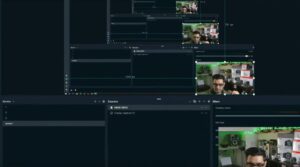
- Video Allocation: Add a new source via the (+) selector, pick Video Capture Device, name it “HDMI Video,” and choose your system device link.
- Audio Allocation: Add an extra source element via the same menu, pick Audio Input Capture, name it “HDMI Audio,” and target the digital audio profile linked to your USB capture accessory.
Monitoring Your Audio Tracks
To track what is reaching your stream mix in real-time, click through into the Advanced Audio Properties panel. Locate your newly targeted capture channel and upgrade its monitoring configuration state from “Monitor Off” over to “Monitor and Output” to map the incoming stream directly out to your headphones.
For an expanded exploration of signal routing behavior and latency optimization fixes, review my full deep-dive session below: