Welcome to Zulf Ali‘s Master Guide on how to connect your action camera to a laptop or computer easily. As a director, writer, and podcaster, Zulf Ali (host of ZulfPhotography) brings you practical, field-tested solutions for enhancing your content creation workflow. Read on for step-by-step instructions, premium troubleshooting secrets, and the exact hardware configurations used to get up and running smoothly.
🔌 Need the Exact Setup I Used in the Video?
Don’t waste money on general charging cables that won’t pass video data. Grab the precise, high-speed accessories needed to lock down your setup instantly below.
📖 Quick Jump Table of Contents
- 📁 Section 1: File Transfer & Storage FAQs
- 📱 Section 2: Mobile App Connectivity & Transfer Hacks
- 💻 Section 3: Software & Webcam Integration
- 🔋 Section 4: Power, Cables & Hardware Troubleshooting
- 📡 Section 5: Wireless Configurations & USB Extenders
- ⚙️ Section 6: Audio Capture & Alternate Video Uses
- 🛠️ Step-by-Step Hardware Connection Workflow
- 🔌 Connection & Wiring Diagrams
Frequently Asked Questions Master Guide
Distilled workflows and technical answers from half a decade of troubleshooting user configurations.
📁 File Transfer & Storage
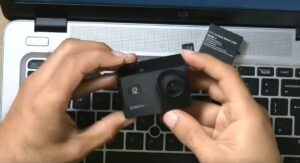
❓ How do I transfer video files from my action camera to my laptop using a USB cable?
Plug the camera into your laptop using a data-compatible USB cable and turn the camera on. When the camera screen prompts you, select “USB Mode” or “Mass Storage.” Your laptop will recognize the camera just like a regular USB flash drive, allowing you to drag your footage right into your computer files.
❓ What if I don’t have a USB cable handy? How else can I get my files onto my computer?
You can simply pop the microSD card out of your action camera and insert it into an external memory card reader plugged directly into your laptop’s USB port. This bypasses the camera entirely and usually transfers huge files much faster.
❓ How do I transfer my files wirelessly from the camera to my laptop?
Turn on the Wi-Fi or Bluetooth inside your action camera’s settings menu, then connect your laptop to the camera’s wireless network signal. Once connected, use the camera manufacturer’s official desktop utility program to scan and download the files to your local drive.
📱 Transfer Action Camera Files to Mobile Troubleshooting
❓ Why does my phone say “No Internet” or disconnect right after connecting to my camera’s Wi-Fi?
• On Android: Look for a system notification that says “This network has no internet access. Stay connected?” and tap Yes.
• On iPhone: Turn off “Wi-Fi Assist” in your cellular settings so your phone stops trying to aggressively switch back to cellular data when it detects the camera’s local network.
❓ How do I connect my action camera to my phone when I am outdoors with no cellular network or internet?
You do not need cell towers, internet, or an active cellular data network to transfer files wirelessly. The camera itself acts as a miniature wireless router, broadcasting its own direct Wi-Fi signal that your phone connects to. However, this means you cannot use your phone’s personal hotspot at the same time, because your phone’s Wi-Fi chip can only handle one wireless connection protocol at once.
❓ Is there a universal way to transfer files without downloading a buggy, brand-specific Wi-Fi app?
First, turn on your action camera, navigate to its internal system settings, and ensure the USB option is set to MTP (Media Transfer Protocol) or Mass Storage / MSDC instead of “Charging Mode.” Once configured, plug the cable directly into your phone and locate your files based on your device brand below:
🍏 Apple iPhone & iPad (USB-C & Lightning models)
Plug in your camera. Open the native, pre-installed Files app on your iOS device. Tap the “Browse” tab at the bottom right. Under the “Locations” index, your action camera will pop up cleanly as an external drive folder, giving you access to the internal DCIM camera folders.
📱 Samsung Galaxy Devices (One UI system)
Connect the data cord. Open the default Samsung “My Files” app. Scroll down past the internal storage sections to find the newly mounted “USB Storage 1” directory. Tap into it to access, view, or copy your raw camera media files instantly.
🤖 Google Pixel, OnePlus & Motorola Devices (Stock Android)
Attach your device. Open the Google “Files by Google” app. Navigate to the “Browse” tab, scroll right to the bottom underneath the standard category filters, and select the listed external USB storage hardware device name.
🇨🇳 Xiaomi, Redmi & POCO Devices (MIUI / HyperOS)
Connect your camera. Open the system “File Manager” application. Tap the clean folder icon indicator located along the top dashboard layout, then select the drop-down volume layout to switch from system storage directly over to the camera connection drive.
💻 Laptop & PC Connection Fixes (Windows / Mac)
❓ Bug: The computer makes a connection sound when plugged in, but no folders appear.
The 5-Year Fix: Your camera is stuck in webcam or charging mode. Disconnect the wire, open your camera’s internal settings, look for USB Connection, and explicitly change it to MTP or Mass Storage. Re-plug, and the system will instantly force your storage drive to mount like a standard USB thumb drive.
❓ Bug: Mac / Apple Finder refuses to see the camera drive completely.
The 5-Year Fix: Apple’s native Finder security layout hides untrusted external media by default. Open Finder, click Finder Settings (or Preferences) in your top system bar, go to the General tab, and make sure “External disks” is checked. If using a modern camera, you can also launch the pre-installed Apple Image Capture app, which bypasses Finder limitations entirely to read raw 4K directories.
❓ Bug: “Device Not Recognized” or completely empty folders on Windows.
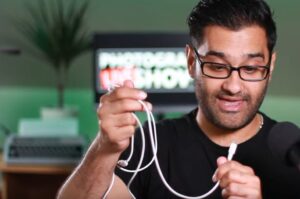
The 5-Year Fix: This is a physical hardware bottleneck. You are likely using a generic “power-only” charging cable (the thin white ones bundled with cheap phone chargers). These cords lack physical internal copper lanes for data transmission. Swap to a thicker, high-quality **USB Data Sync cable** or a dedicated USB-C high-speed link cable to clear up the driver error instantly.
❓ Can I just use Bluetooth to transfer files, and does the process change for an iPhone or iPad?
No, you cannot use standard Bluetooth to transfer large video files. Bluetooth bandwidth is far too slow and is only used by camera apps to “wake up” the device or sync tiny settings files.
For physical file transfers, the cable method works perfectly across platforms, but the hardware requirements depend entirely on your Apple device port generation:
• USB-C Devices (iPhone 15/16, modern iPads): Simply use a standard high-quality USB-C to USB-C data sync cable.
• Lightning Devices (iPhone 14 and older, older iPads): Standard charging wires will block data syncing. You must plug an official Apple Lightning to USB 3 Camera Adapter dongle into the phone, and run a standard USB-A to USB-C data wire from that adapter over to your action camera to trigger the storage drive recognition loop.
💻 Software & Webcam Setup
❓ Can I use my action camera as a live webcam?
Yes, absolutely! Modern cameras like the DJI Osmo Action 4 allow you to simply connect a data cable and tap “Webcam” on the built-in screen. For older budget models, a regular USB connection will only let you browse files. To use those older models as webcams, you will need to run a Micro HDMI cable from the camera out into an inexpensive HDMI USB capture card plugged into your laptop.
❓ Why does my camera work perfectly in OBS but show a blank screen or fail to stream in StreamYard?
Web-based streaming tools are sensitive. This setup conflict almost always happens because OBS is still running in the background and holding onto the video feed. Windows only allows one program to access a camera device at a time. Close OBS completely before loading your web browser streaming software to fix the conflict.
❓ Is there a quick way to test if my laptop even sees the camera without downloading big software?
Yes. If you are using Windows, type “Camera” into your desktop Start search menu and open the stock Windows Camera application. Click the “switch camera” icon at the top of the interface to cycle inputs. If your camera setup is recognized properly, your live image feed will pop up directly. *(Ensure background apps like Zoom or OBS are closed during this test).*
🔋 Power, Cables & Troubleshooting
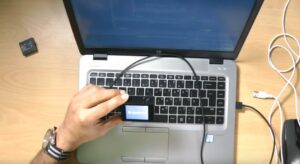
❓ My camera is completely refusing to connect or be recognized by my laptop. What am I doing wrong?
This usually comes down to three main culprits: using a “charge-only” cable that lacks data pins, a corrupted or completely full microSD card holding up the camera system, or outdated system drivers. Try switching to a verified data-sync cable, removing the SD card entirely to check, or switching to an alternate USB port.
❓ Why does my camera immediately shut down or just go into “charge mode” when I plug it into my laptop?
This happens when your laptop’s USB port fails to push out enough amperage to power the camera operations while charging it simultaneously. Try connecting with a certified data cable into your laptop’s main powered USB port, or run the camera strictly on power by removing the internal battery altogether.
❓ I’ve tried everything and my budget camera still won’t connect. Are there any hidden tricks?
Budget brands (like Akaso, Ape Man, or Crosstour) can be temperamental. Take the microSD card completely out and pull the battery out of the frame. Then, connect it to your PC with a high-quality data cable. If it powers up directly via the cable but still won’t feed video, that specific budget hardware model might lack native webcam support.
❓ My camera screen shows a yellow triangle with an exclamation mark and says “PC Camera.” Is it broken?
Not at all! That icon means your camera successfully initiated webcam mode. The physical connection is solid. Now simply open up your software (like Zoom, OBS, or Skype) and select “PC Camera” or “USB Video Device” inside your video source drop-down settings list.
❓ My camera refuses to work without the battery inside, even when plugged into a power source. Is this normal?
Yes, some specific action camera systems require a battery in place to close the power loop before they will boot up. If your camera operates this way, keep the battery in and plug into a high-output USB port on your laptop to keep the charge stable.
📡 Wireless & Distance
❓ My camera has Wi-Fi and connects perfectly to my phone, but why won’t it connect wirelessly to Windows?
Action camera Wi-Fi signals are proprietary and built to connect only with their native iOS or Android apps. Windows does not recognize these network signals as standard webcam feeds. For a clean, stable live video feed into a computer, skip the Wi-Fi option and use a physical USB or HDMI cable.
❓ Can I use a long 5-meter (16-foot) USB extension cable to position my camera further away from my PC?
Standard USB cables face power drops and signal loss beyond 3 meters (10 feet). If you use a basic 5-meter extension cord, your PC will likely lose track of the video source. To safely extend the length, you need an “active” USB extension cable, which features a small internal chip to boost data across the distance.
⚙️ Audio & Alternate Uses
❓ Does using my action camera as a webcam also record audio through the camera’s built-in microphone?
Yes, it passes audio through, but you must manually map it. In OBS, add an “Audio Input Capture” layer and pick your action camera mic source. In Zoom or Teams, change your primary microphone device to match the camera. Keep in mind that action camera mics are tuned for outside environments and can sound hollow in a room; a standalone USB desk mic will give you much cleaner sound.
❓ Can I use my old action camera as a permanent, long-term CCTV or home security camera?
It is not recommended. Action cameras run very warm when processing continuous video, causing them to overheat and lock up after several hours of static use. Additionally, keeping the device charging around the clock degrades lithium batteries over time. They are built for active recording and short vlogging runs rather than continuous security monitoring.
How to Connect Action Camera to Laptop: Setting Up Your Gear
To begin, gather the necessary equipment: your action camera, a high-quality USB cable (preferably a longer one for flexible positioning), and your laptop. Zulf Ali recommends checking out his newsletter for a comprehensive guide on essential cables and leads. Learning how to connect your action camera to laptop equipment correctly will also pave the way for future live streaming endeavors.
Preparing the Action Camera
Remove the memory card and battery from your action camera. This ensures smooth, heat-efficient operation when using it as a webcam. With the camera prepped, plug one end of your dedicated Micro USB or USB-C data sync cable into its hardware port.
How to Connect Action Camera to Laptop Ports Safely
Next, insert the other end of the USB data cable into your laptop. Upon connection, the action camera should indicate its readiness for use as a webcam, typically with a flashing light indicator or a connection prompt UI on the screen.
Configuring OBS Studio
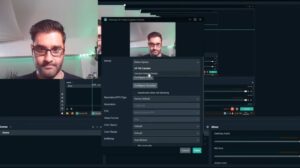
Launch OBS (Open Broadcaster Software), a versatile tool for digital content creators. Follow Zulf Ali’s on-screen instructions to add your camera as a video capture device. With OBS, you can seamlessly integrate multiple input sources, such as your laptop’s built-in webcam, allowing for dynamic multi-camera content presentation.
Enhancing Your Setup
Consider investing in hardware accessories like framing cages, clamp arms, or desk tripods to optimize the physical placement of your action camera. These accessories offer vital stability and positioning flexibility, ensuring you capture the perfect aesthetic angle for your stream.
Testing and Troubleshooting
After setting up your camera, conduct a quick video feed test to ensure everything is operating correctly. If you encounter any connection issues, Zulf Ali recommends checking the cable pins and testing high-spec data alternatives if necessary. Remember, troubleshooting is a standard part of production operations, and with a bit of systematic patience, you’ll achieve professional, lag-free streaming results.
In Summary
By following Zulf Ali’s expert guidance, you can effortlessly integrate your action camera into your laptop setup, unlocking new possibilities for content creation. Whether you’re streaming live or recording videos, this simple yet effective solution ensures professional-quality results every time. Visit Zulftalks.com for further production and workflow strategies.

About the Author
Zulf Ali is a creative director, writer, and podcast host helping digital creators navigate recording hardware configurations and hardware workflow design operations.
Check out my Complete Studio Gear Guide →
Configuration 1: Action Camera to Laptop (HDMI Capture)
Configuration 1.2: Action Camera to Laptop (Direct USB Cable)
Configuration 2: Action Camera to Mobile Device (OTG Routing)
Configuration 2.2: Action Camera to Mobile Device (Direct USB Cable)
Still Need a Hand Getting Your Specific Setup Perfect?
First, thank you so much for purchasing this guide! I want to make sure you get up and running without any frustration. If you didn't find the exact answer to your unique hardware setup above, I have a couple of tailored ways to help you get over the finish line.
📺 Option A: Video Playlist Help
I’ve curated a deep-dive YouTube playlist filled with step-by-step visual walk-throughs covering various camera brands, systems, and connection quirks.
Browse the Video Playlist →🤝 Option B: Tailored 1-to-1 Solution
Skip the trial-and-error. Book an exclusive 1-to-1 consultation during my office hours, and we'll troubleshoot, configure, and optimize your specific workflow live.
Book a 1-to-1 Consultation →🎥 Watch: How My One-to-One Consultations Work
"Zulf Consultation Guide Explained" Learn how we can lock down your video setup in just one call.